PromptFax MCP
Set up the PromptFax MCP connector
PromptFax exposes a remote MCP server for sending outbound faxes from ChatGPT, Claude, and other MCP-capable hosts. Use the section for the LLM system or MCP client you want to connect. PromptFax is built for one-off, pay-per-use faxing: every real send requires a user-reviewed quote and Stripe payment authorization before transmission.
ChatGPT setup
ChatGPT MCP connector setup
In ChatGPT, custom MCP connectors are created from Settings -> Apps -> Create app. Use the values below to create a private PromptFax connector, review the discovered OAuth settings, and authorize PromptFax before starting a new chat.
ChatGPT steps
- Open ChatGPT connector or app settings.
-
Create a custom MCP connector for PromptFax.
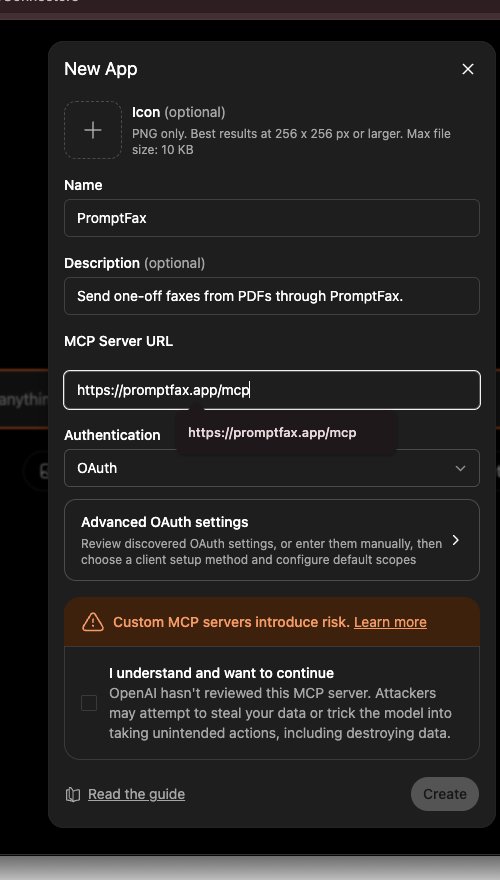
Enter the PromptFax MCP server URL and keep authentication set to OAuth. - Set the MCP server URL to
https://promptfax.app/mcp. -
Choose
OAuthauthentication and complete authorization.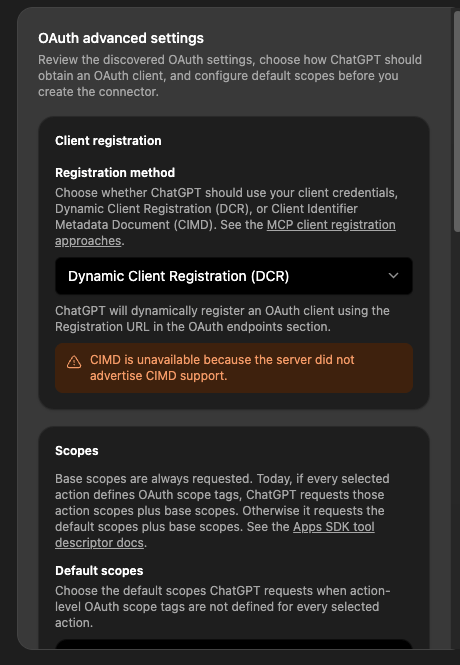
ChatGPT discovers the PromptFax OAuth endpoints from the MCP server metadata. - Refresh the connector so ChatGPT pulls the latest tool list.
- Start a new chat and ask PromptFax to fax an attached document.
- Use Choose PDF from ChatGPT in the widget when that button is available.
Expected ChatGPT flow
ChatGPT should call start_session first. The PromptFax widget then owns file
selection, destination entry, automatic quote creation, Stripe Checkout launch, and status
polling. ChatGPT should not ask for a separate quote step after the widget already shows a price.
Payment opens through Stripe. PromptFax starts sending only after webhook-confirmed authorization; a browser redirect alone is not treated as payment truth.
Claude setup
Claude MCP connector setup
In Claude, remote MCP connectors are added from Customize -> Connectors -> Add connector -> Add custom connector. Use the PromptFax MCP server URL below. OAuth client ID and client secret are optional; PromptFax publishes the OAuth metadata Claude needs for the normal connection flow.
Claude steps
- Open Claude Customize -> Connectors.
-
Choose Add connector -> Add custom connector.
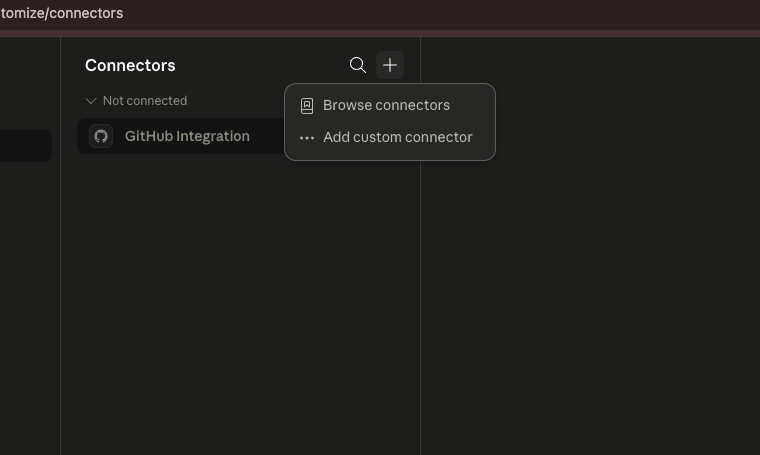
Open the Add connector menu and choose Add custom connector. -
Set the name to
PromptFaxand the remote MCP server URL tohttps://promptfax.app/mcp.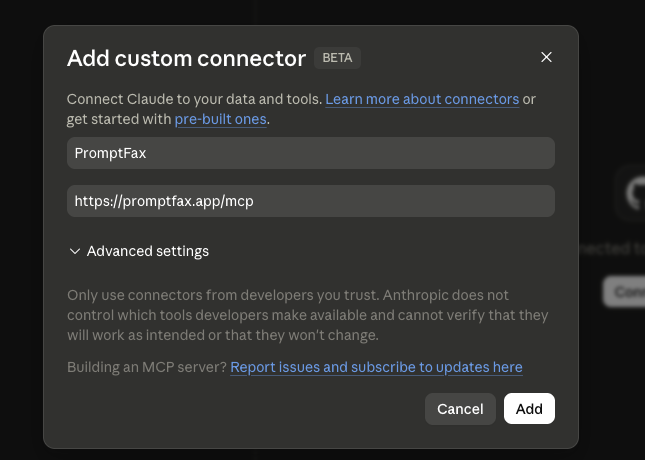
Enter PromptFax as the connector name and set the remote MCP server URL. - Leave optional OAuth client credentials blank unless Claude requires static credentials for your plan.
- Save the connector, connect it, and complete the PromptFax OAuth flow.
- Enable PromptFax for a new conversation from Claude's connector or tools menu.
Expected Claude flow
Claude should call start_session first with hostType=claude when it can.
PromptFax then advertises a Claude MCP App resource that can render an inline upload,
destination, quote, payment-handoff, and status surface inside Claude. Stripe Checkout
still opens outside Claude because payment authorization remains a Stripe-hosted step.
Claude may list PromptFax tools before OAuth, but real workflow actions require authorization. Treat Claude file attachment behavior as host-specific and verify it with a non-sensitive sample PDF before using a real document. If Claude cannot render the inline app, use the PromptFax-hosted session page from the app or tool response as the fallback.
Claude tool permissions
Claude groups PromptFax tools from MCP metadata and its own permission model. Seeing
start_session as interactive, get_status as read-only, and the
document, quote, checkout, retry, send, and cancel tools as write/delete actions is expected.
Leave approval enabled unless you intentionally want Claude to call fax workflow tools without
checking with you first.
Other MCP clients
Generic MCP client setup
PromptFax also works with MCP clients that support remote Streamable HTTP servers and OAuth. Clients without interactive app or host file APIs should use the hosted PromptFax session page or pass real HTTPS PDF URLs to the fallback tools.
Connector values
MCP Server URL: https://promptfax.app/mcp
Transport: Streamable HTTP
Authentication: OAuth
OAuth discovery is automatic from the MCP server metadata.
Expected generic flow
- Connect to
https://promptfax.app/mcpusing Streamable HTTP. - List tools; PromptFax allows anonymous discovery for directory and client probes.
- Authorize before calling workflow tools such as
start_session. - Start a session, attach a PromptFax document or HTTPS PDF URL, request a quote, then open Checkout.
- Use
get_statusto refresh the send workflow after payment, send, retry, or cancel actions.
Agent-friendly web app fallback
The full PromptFax web app is available when an MCP host cannot carry the entire file and payment flow inside tool calls. Agents can open the hosted session page, guide upload/review, request a quote, launch Stripe Checkout, and poll delivery status while the MCP session remains the source of workflow state.
Limits and safety
PromptFax currently sends outbound faxes to US numbers only. It accepts PDF, JPG, JPEG, and PNG files, supports up to 35 pages per fax, and is built for one-off use without PromptFax accounts, trials, subscriptions, or monthly plans.
Each destination is a separate pay-per-use workflow. PromptFax quotes before payment, opens Stripe for authorization, and only sends after payment authorization is confirmed.
Directory probes may list tools without OAuth, but real workflow actions require OAuth. PromptFax rejects localhost, private-network, direct-IP, redirected, oversized, or non-HTTPS file URLs.
Review the tool catalog or use the no-send demo before connecting a real document.